How to Run a Complete iPhone Hardware and Network Check
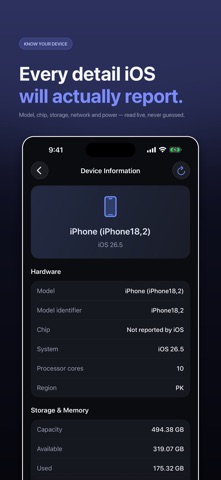

A complete iPhone check is useful before buying used, after a drop, before a repair, or when several features feel unreliable. Test the battery and storage, then check connectivity, display, audio, cameras, sensors, and Face ID. A structured scan is more useful than testing random features.
Start with device information
Open Settings > General > About and record the model, iOS version, IMEI, and available storage. Keep private identifiers out of public listings. Check Battery Health and note whether the phone becomes unusually warm during normal use.
Test connectivity
Test Wi-Fi, Bluetooth, cellular data, a phone call, and a text message. Check whether the issue follows one location or one network. On Dual SIM devices, confirm the correct line is selected. If cellular service is missing, also check the SIM, eSIM, carrier lock, and carrier outage status.
Test the physical hardware
- Swipe across the entire display and test multi-touch.
- Open both cameras and inspect focus, flash, and video.
- Record audio and play it through the speaker.
- Test the microphone during a call.
- Try Face ID, the proximity sensor, compass, and motion sensors.
Save a useful report
Record the result of each test, the date, and any symptoms. A PDF report can help a technician understand what changed. Remember that software can identify symptoms, but it cannot prove that there is no liquid or impact damage.
Use one diagnostic toolkit
Download Secret Codes: IMEI & Carrier to run individual tests or a broader device scan covering battery, storage, thermals, connectivity, display, camera, audio, sensors, and Face ID. Results stay useful as a reference when you need support.
What to do with the results
One failed test does not always mean the phone is broken. Repeat it after a restart and compare it with another known-good device where possible. Contact the carrier for account and network issues, and Apple Support or a qualified technician for persistent hardware failures.


Comments
Post a Comment