iPhone eSIM Not Working? Try These Safe Fixes

An eSIM activation can fail because of an account issue, an unsupported model, weak internet, a carrier outage, or an old profile that is still active. Use these checks in order before deleting anything from your iPhone.
Confirm the line is present
Open Settings > Cellular. If the line appears, make sure it is turned on and selected for cellular data. If you use Dual SIM, check which line is being used for calls, messages, and data.
Check the EID and IMEI
Go to Settings > General > About and locate the EID and IMEI2. Your carrier may need one of these identifiers to activate the line. Never share them publicly. Send them only through the carrier's official support flow.
Refresh the connection safely
- Connect to reliable Wi-Fi.
- Turn Airplane Mode on briefly, then off.
- Restart the iPhone.
- Check for a carrier settings update in the About screen.
- Ask the carrier whether the eSIM QR code or activation link is still valid.
Do not delete a working eSIM just to test a setting. Reinstallation may require a new QR code or carrier approval.
Check compatibility
Confirm that the iPhone model supports eSIM in your region and that the carrier supports the device. A carrier lock, unpaid balance, account suspension, or incomplete number port can also block activation.
Useful eSIM references
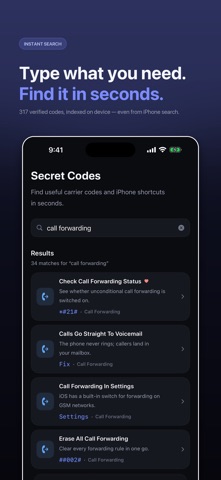
Secret Codes: IMEI & Carrier keeps EID, IMEI, ICCID, eSIM transfer, carrier-lock, and troubleshooting references searchable in one app. It is designed for on-device use and does not require an account.
When to call the carrier
Contact the carrier if activation fails after a restart, the line disappears, the account shows the wrong device, or the iPhone reports that the plan cannot be transferred. Keep the exact error message and your device identifiers ready.


Comments
Post a Comment